💳 Payment Gateway Setup Guide in Doblly
Doblly supports a wide range of payment gateways so you can accept payments from your customers easily and securely.
📌 Step 1. Accessing Payment Settings
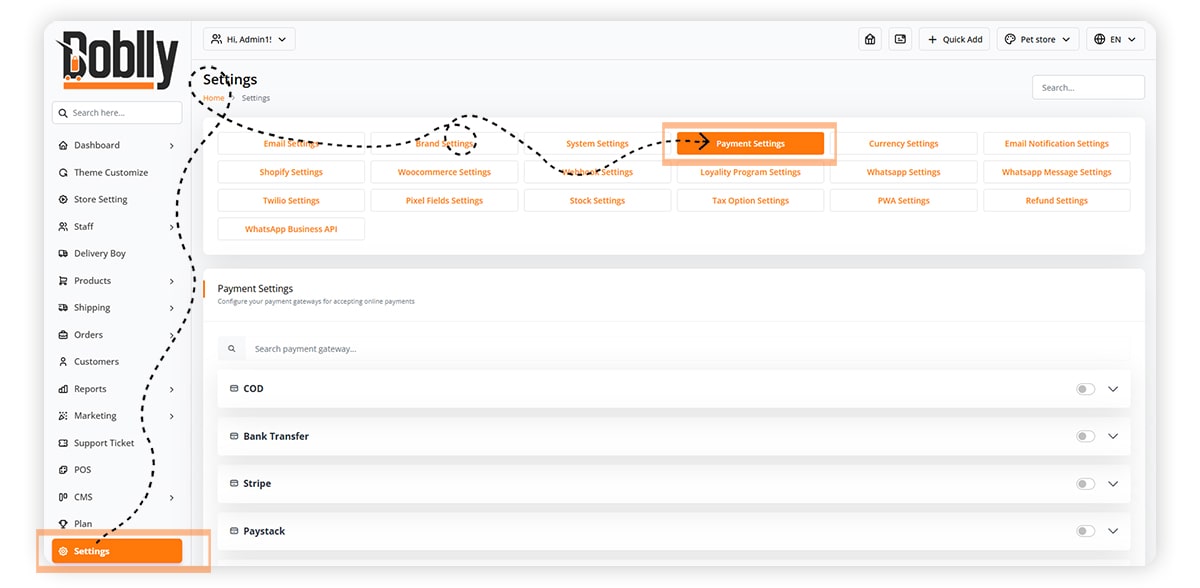
From the left menu, click Settings.
At the top menu, select Payment Settings.
You will now see the full list of available payment gateways.
🌍 Step 2. Available Payment Methods
Doblly supports the following payment gateways:
- Bank Transfer
- Stripe
- Paystack
- Skrill
- PayPal
- Paytm
- Mollie
- ...and more
🛠 Step 3. Example: Connecting Stripe
To show you how it works, let’s configure Stripe. The process is similar for other gateways.
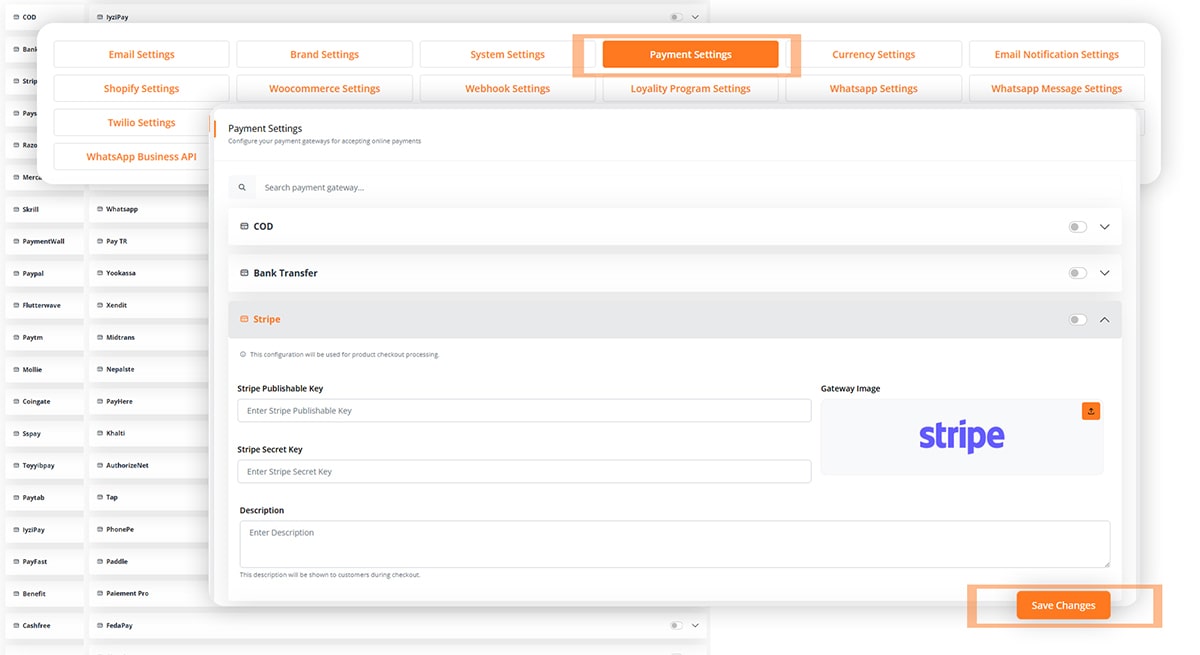
- On the Payment Settings page, open the Stripe tab.
- Enter your Stripe Client ID (from your Stripe Developer Dashboard).
- Enter your Stripe Secret Key from the same section.
- Add a Description (e.g., “Secure payments via Stripe”).
- Upload or keep the default Gateway Logo.
- Switch the toggle button to Enable Stripe.
- Click Save to apply your changes.
✅ Step 4. Testing
- Place a test order in your store.
- At checkout, select Stripe as the payment method.
- Make sure the payment is processed successfully.
👉 That’s it!
You can follow the same steps to connect any other payment gateway. Simply open the gateway tab, enter the required API credentials, enable it, and save.